Getting Started
If you purchased the phone app and you can't get it to work please reach out so I can help.
Email Me
What you need
- An iPhone running the NovaKey iOS app
- A computer running NovaKey-Daemon
- A local network connection (or trusted remote connection)
Download from the App Store

High-level flow
- Install NovaKey-Daemon on your computer
- Install NovaKey on your iPhone
- Pair the phone with the computer
- Add secrets on the phone
- Send secrets securely when needed
NovaKey does not sync secrets via cloud services. All data remains local to your devices.
This is the fastest path to “send a secret from iPhone → computer”.
On the phone (quick tour)
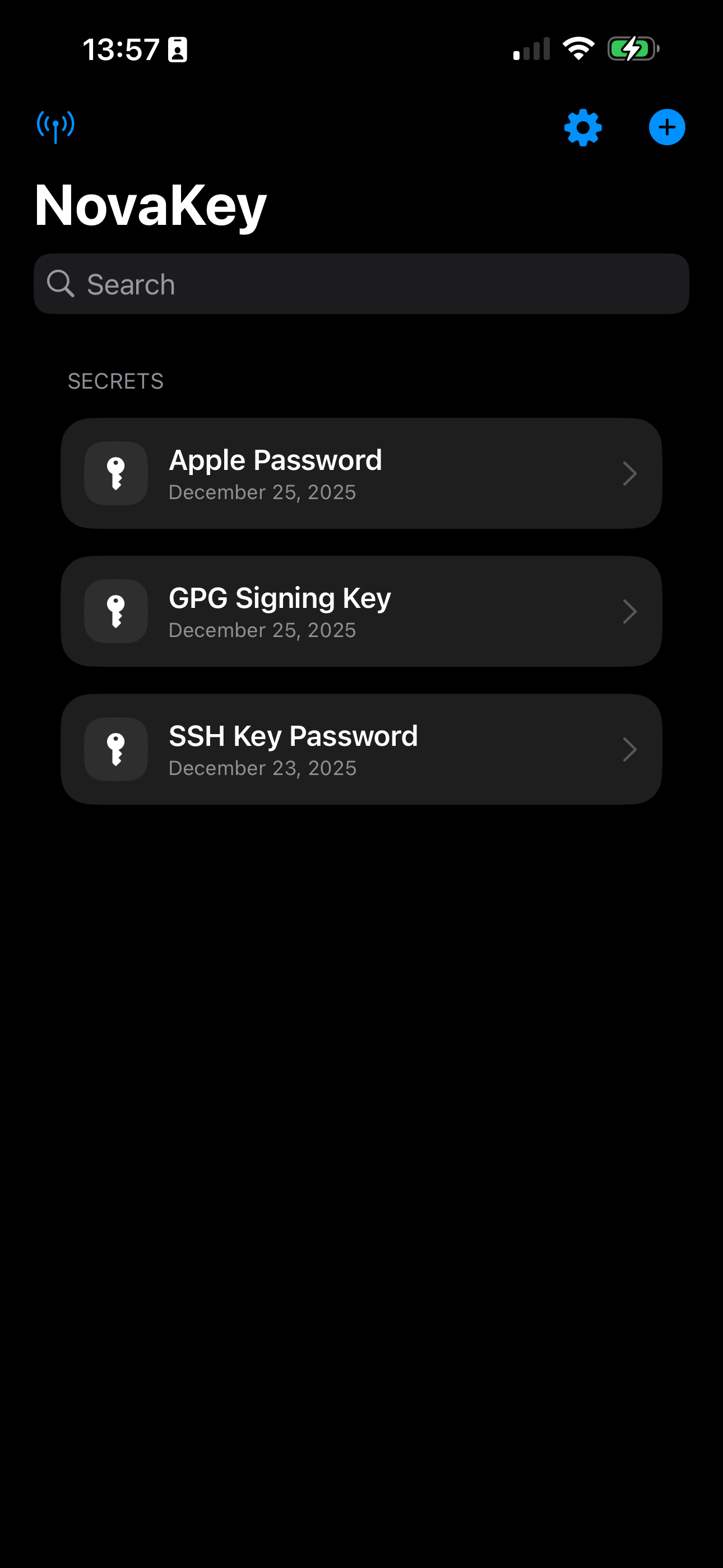
Main screen
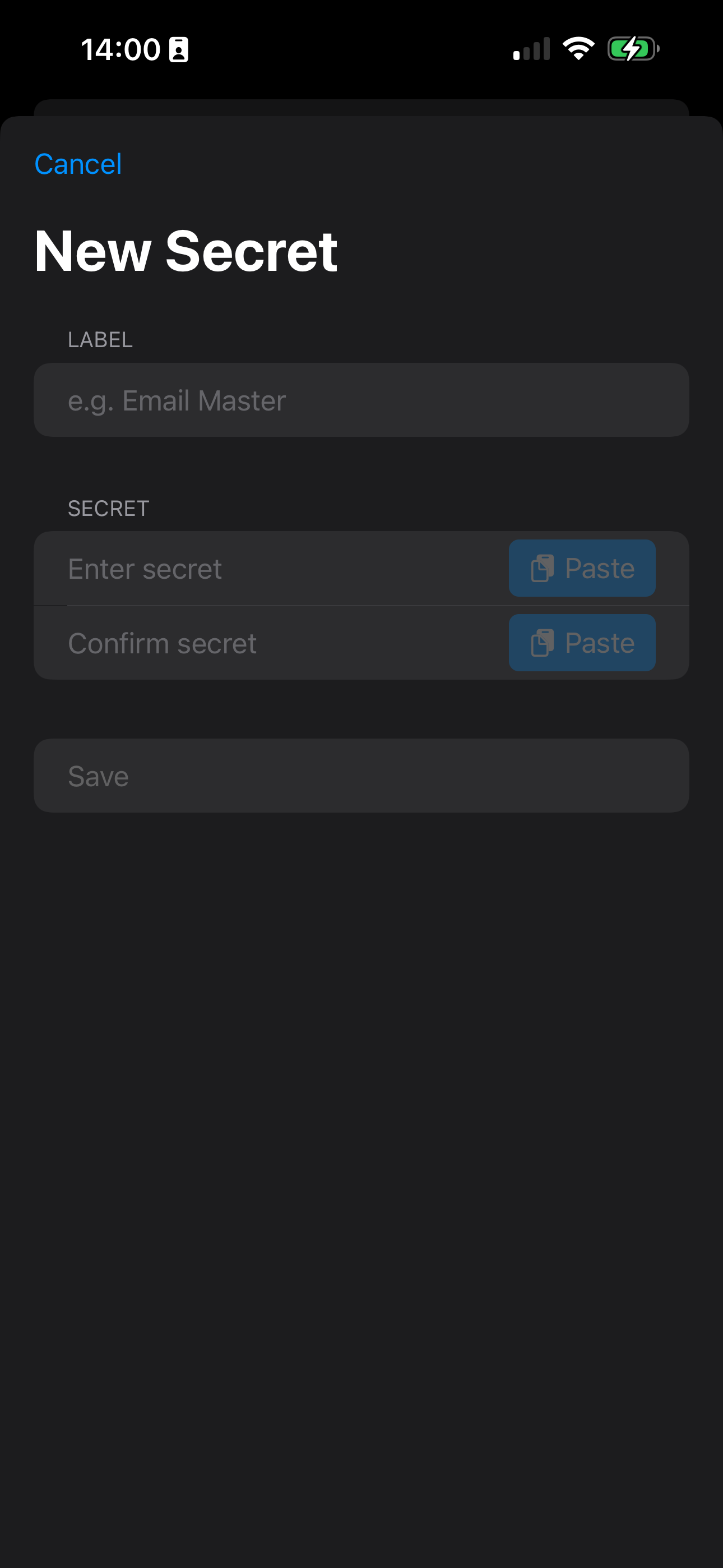
Add a secret
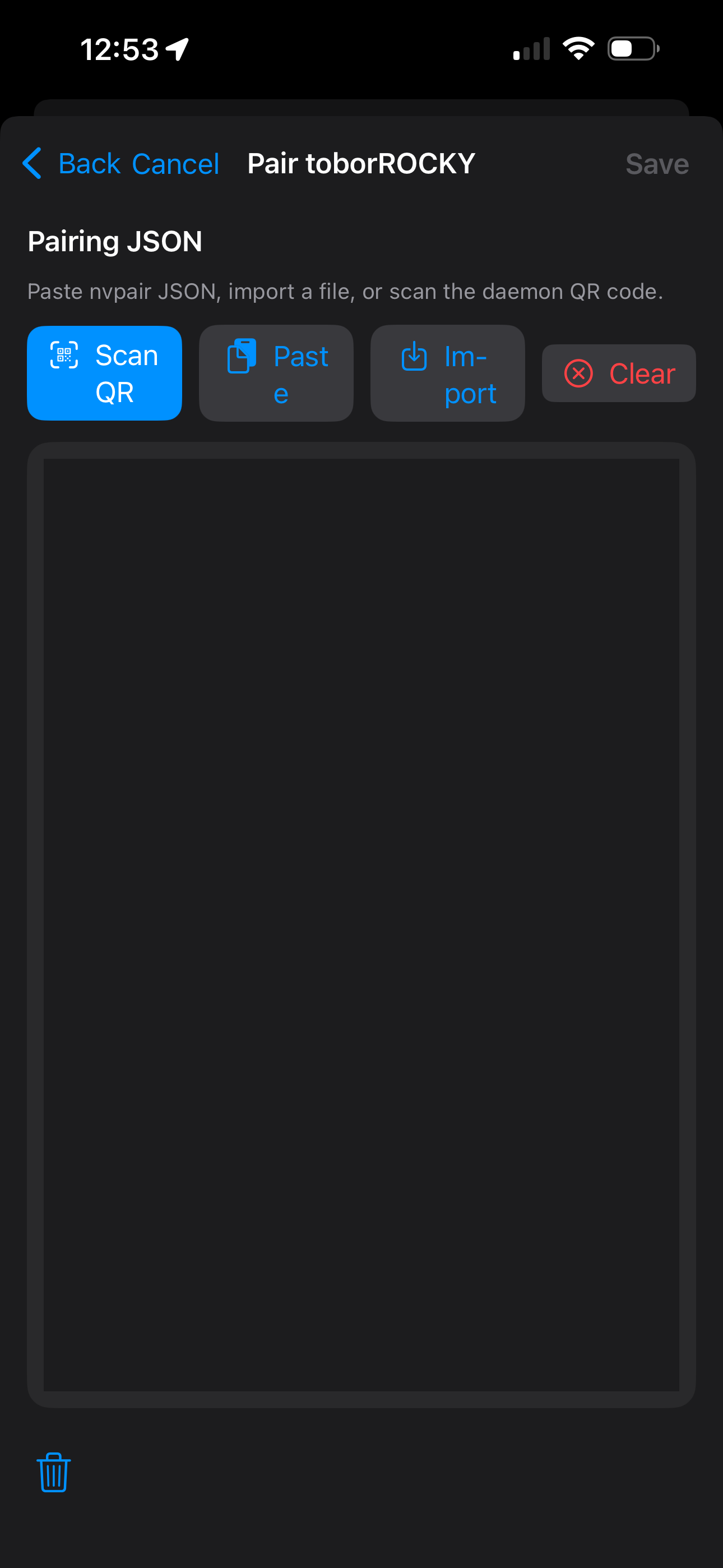
Pair by scanning a QR
Step 0 — Install NovaKey-Daemon
Follow: NovaKey-Daemon → Install and complete the installer for your platform.
The daemon will start automatically after installation.
If you want phone → computer over Wi-Fi: the daemon must listen on a LAN-reachable address (not 127.0.0.1).
Step 1 — Open NovaKey and add a Listener
- Open NovaKey
- Tap Listeners (antenna icon)
- Add Listener:
- Name: “My Desktop”
- Host/IP: your computer’s LAN IP/hostname
- Port:
60768 - Turn on Make Send Target
- Tap Add
Step 2 — Pair via QR
-
On your computer, start NovaKey-Daemon. Note this will happen automatically for you after you run the NovaKey-Daemon installer. If you are doing things manually for whatever reason you can use these methods:
-
Linux: Open a terminal and run
systemctl --user start novakey.service -
Windows: Open Task Scheduler and run the task named NovaKey
-
macOS: Open a terminal and run
2. If there are no paired devices, the daemon enters pairing mode and generates a time-limited pairing QR.launchctl kickstart -k gui/$(id -u)/com.osbornepro.novakey
TROUBLESHOOTING NOTE: The pairing QR token may expire if not scanned quickly enough. If this happens:
- Delete the generated files:
novakey-pair.png,server_keys.json, and (if present)devices.json- Stop the NovaKey-Daemon
- Start it again
On Windows this is done via Task Scheduler. On Linux and macOS, this can be done from the terminal.
-
On iOS:
-
Listeners → select your listener → Pair → Scan QR
-
Scan the QR.
You will see a prompt on your phone asking you to confirm the device you are pairing with.
Take note of the IP address shown.
It is strongly recommended to set your device’s default IP address in NovaKey-Daemon’s server_config.yaml file for reliability.
Using a VPN or having virtual interfaces from a hypervisor will not impact NovaKey’s functionality.
If you miss the QR code, restart the daemon or see the NovaKey-Daemon troubleshooting guide.
Step 3 — Add a secret
- Tap +
- Enter a label + secret + confirm
- Tap Save
NovaKey will never display the secret again (by design).
Step 4 — Send it
- Tap the secret
- Tap Send
- Authenticate with Face ID / passcode
Success outcomes:
- ✅ Sent to
If something doesn’t work
Start with:
- Phone App → Troubleshooting
- NovaKey-Daemon → Troubleshooting