NovaKey-Daemon Troubleshooting
If you purchased the phone app and you can't get it to work please reach out so I can help. Email Me
“Nothing types” / injection fails
Linux
- Wayland may block injection depending on compositor and security settings.
- Try X11, or rely on clipboard path where appropriate.
⚠️ Linux system service fails after install (systemd user service issue)
In some RPM-based installations (Rocky / RHEL / Fedora), NovaKey may install successfully but the service fails to start or exits immediately.
This is usually caused by missing or incomplete systemd user service behavior rather than a problem with NovaKey itself.
Symptoms
-
systemctl --user status novakeyshows: -
status=1/FAILURE - service starts and immediately stops
- No injection, no daemon behavior
- Config file exists but service does not stay running
Quick verification
systemctl --user status novakey
journalctl --user -xeu novakey.service
Recommended Fix (User Override — Safe and Supported)
Instead of modifying system files or reinstalling, create a user-level systemd override:
Step 1 — Create override directory
mkdir -p ~/.config/systemd/user
Step 2 — Create override file
nano ~/.config/systemd/user/novakey.service
Paste:
[Service]
WorkingDirectory=%h/.local/share/novakey

ExecStartPre=
ExecStartPre=/usr/bin/mkdir -p %h/.local/share/novakey/logs %h/.config/novakey
ExecStartPre=/usr/bin/test -f %h/.local/share/novakey/server_config.yaml
ExecStartPre=/usr/bin/cp -n /usr/share/novakey/server_config.yaml %h/.local/share/novakey/server_config.yaml

ExecStart=
ExecStart=/usr/bin/novakey --config %h/.local/share/novakey/server_config.yaml
Step 3 — Reload systemd user daemon
systemctl --user daemon-reload
Step 4 — Restart NovaKey
systemctl --user restart novakey
Verify
systemctl --user status novakey
Expected:
Active: active (running)
Why this happens
- Some RPM installations do not correctly initialize the user service environment
- System-level sandboxing or ExecStartPre handling may fail in certain systemd builds
- User override ensures a clean, predictable execution path
Security notes
- This override runs entirely in the user session
- No sudo required
- Does not modify system packages
- Does not weaken system security policies
macOS
- Accessibility permissions are often required for injection.
- Confirm the daemon has the required permissions.
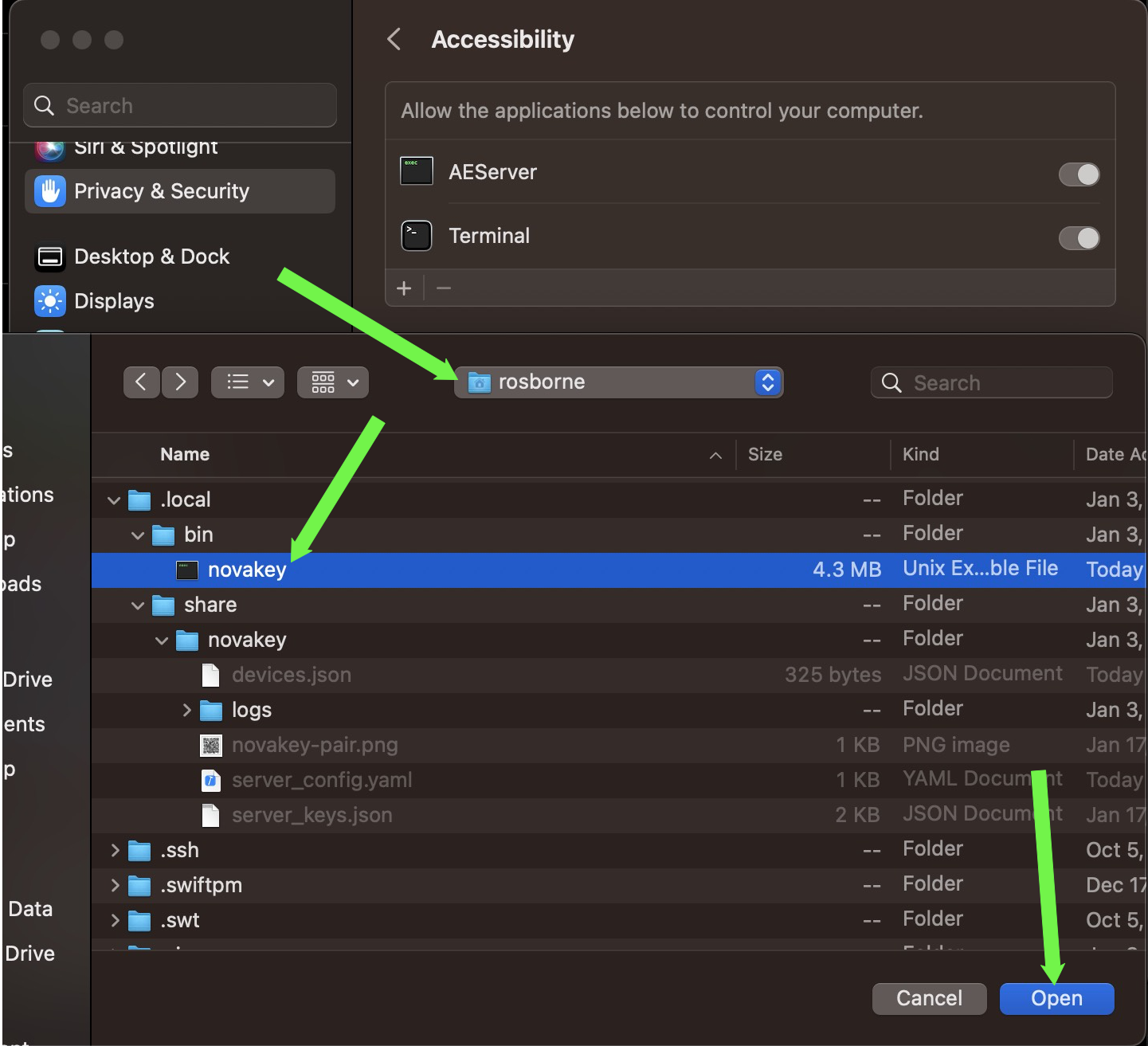
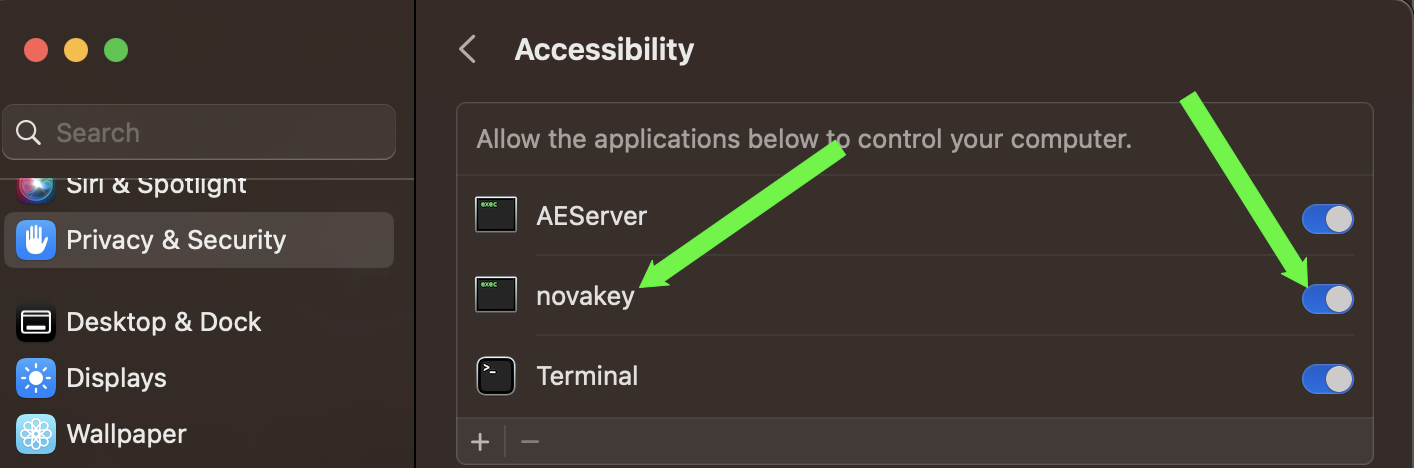
To add the accessibility permissions you need to add the novakey binary in ~/.local/share/novakey/bin/novakey to System Settings > Privacy & Security > Accessibility
Windows
- Some UAC contexts and secure desktop prompts can block injection.
Clipboard mode happened (status 0x09 — OK_CLIPBOARD / okClipboard)
The daemon also returns a semantic reason to explain what happened:
clipboard_fallback— clipboard was used (either paste was executed or user must paste)typing_fallback— auto-typing fallback was usedinject_unavailable_wayland— injection unavailable on Wayland; clipboard fallback path used
This means:
- injection was blocked or denied
- but the daemon successfully copied the secret to clipboard
Common causes:
- focus target denied by target policy
- OS permissions missing
- secure input mode enabled by the active app
- Wayland / compositor restrictions
Pairing issues / QR code not shown
“I missed the QR code”
During first startup, NovaKey enters a time-limited pairing mode. If the QR code is not scanned in time, pairing may not complete.
Depending on platform and security state:
- Restarting the daemon may re-enter pairing mode if no device store exists
- If secure storage was partially initialized, pairing may not automatically restart
On Linux in particular, cancelling keyring unlock prompts or hardware-backed authentication (for example YubiKey confirmation) can leave the daemon in a non-pairable state.
Recovery steps
Try the following, in order:
- Restart the daemon under your user account. DO NOT use
sudoor elevated admin permissions
# On Linux
systemctl --user restart novakey

# On macOS
launchctl kickstart -k gui/$(id -u)/com.osbornepro.novakey

# On Windows open Task Scheduler and stop/start the 'NovaKey' task
Stop-ScheduledTask -TaskName "NovaKey"
Start-ScheduledTask -TaskName "NovaKey"
-
Check for an existing device store
-
In cases where you have needed to enabled a
devices.jsonfile, the daemon may assume pairing already occurred. Delete this file and restart the service to start again. -
If pairing still does not appear
-
Perform a full uninstall ensuring
- On Windows verify
%LOCALAPPDATA%\NovaKeydoes not exist - On Linux verify
~/.local/share/novakeyand~/.config/novakeyand/usr/share/novakeydon't exist - On macOS verify
~/.local/share/novakeyand~/.config/novakeyand~/Library/Application Support/NovaKeydon't exist - Reinstall the daemon
- Complete pairing when the QR code is displayed
This behavior is intentional and designed to prevent indefinite or replayable pairing attempts.
Why pairing can require reinstall
NovaKey treats initial pairing as a high-trust operation.
To reduce the risk of:
- replay attacks
- downgrade to weaker storage
- indefinite pairing windows
The daemon limits how many times secure initialization and pairing can be retried. If this process is interrupted or fails in a non-recoverable way, reinstalling ensures a clean and verifiable security state.
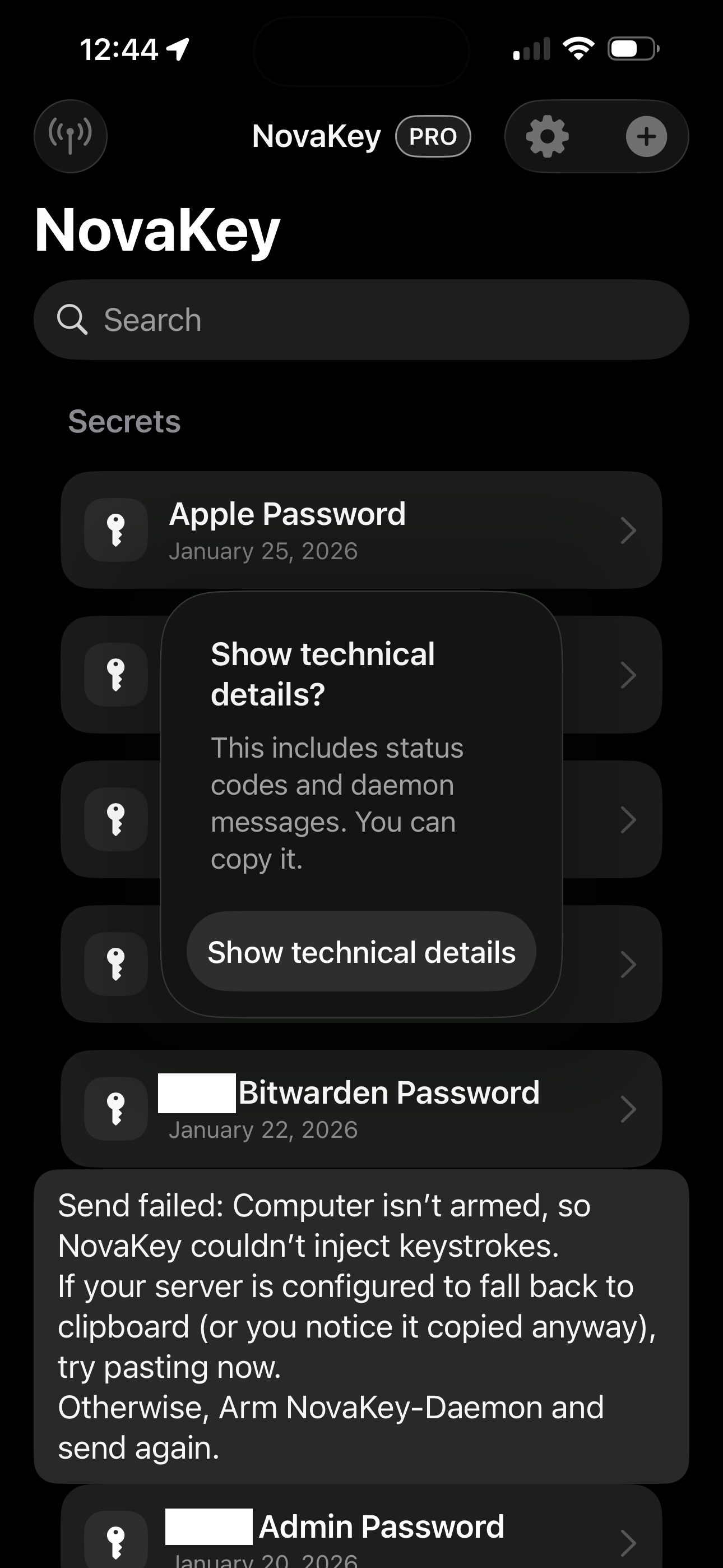
“Not armed”
- Arm gate is enabled and active.
- Trigger arming locally (or via the Arm API if enabled and loopback-only).
- Restart the novakey service on your computer and try again.
“Needs approval”
- Two-Man Mode is enabled and injection requires an approve step inside an approval window.
Timestamp / replay errors
- Ensure system clocks are correct.
- Replay detection can trigger if the same request is re-sent.
Logs
- Logs may be redacted but should still be treated as sensitive.
- If sharing logs for support, share only what’s necessary.