Installing NovaKey Daemon
The NovaKey Daemon is a background service that runs on your computer and securely receives secrets from the NovaKey app, then types them into the active application.
As of v1.0, NovaKey provides native, signed installers and repositories for all supported Linux and macOS platforms.
Windows installers currently do not ship with a code-signing certificate, as obtaining and maintaining one involves significant cost. If demand justifies it, a signed Windows installer will be provided in a future release.
The methods below are the recommended and supported installation paths for each operating system.
⚠️ Important: Pairing is security-sensitive
During first install, the NovaKey Daemon performs a one-time secure bootstrap and enters pairing mode. A time-limited QR code is displayed for pairing your NovaKey app.
If pairing is interrupted, cancelled, or secure storage initialization fails (for example due to keyring, DPAPI, or hardware-backed authentication constraints), the daemon may fall back to a local device store or require a full reinstall to restart pairing.
For best results:
- Have the NovaKey app ready before installing
- Complete pairing when the QR code is displayed
Missing the QR code does not compromise security, but may require restarting or reinstalling the daemon to re-enter pairing mode.
Supported Platforms
- Windows 11
- macOS 14+
- Linux (systemd user services, glibc)
Recommended Installation (Official Packages)
Download & Repository Locations
NovaKey packages are distributed via official signed repositories and installers:
-
Windows (AMD64):
Download Windows NovaKey-Daemon Installer
Download Windows NovaKey-Daemon Installer from GitHub -
macOS (Apple Silicon / Intel):
Download macOS NovaKey-Daemon Intel Installer
Download macOS NovaKey-Daemon Apple Silicon Installer -
Linux (RPM & APT repositories):
Linux Repository Parent URL
Linux Debian AMD64 Installer Download
Linux Debian ARM64 Installer Download
Linux Fedora AMD64 Installer Download
Linux Fedora AARCH64 Installer Download -
GitHub Releases (all platforms):
https://github.com/OsbornePro/NovaKey-Daemon/releases
Windows Installation
1) Download
Download:
NovaKey-Setup.exe
2) Run the installer
- Double-click NovaKey-Setup.exe
- Follow the on-screen prompts
The installer:
- Installs NovaKey into your user profile
- Creates a per-user Scheduled Task
- Starts the daemon automatically at login
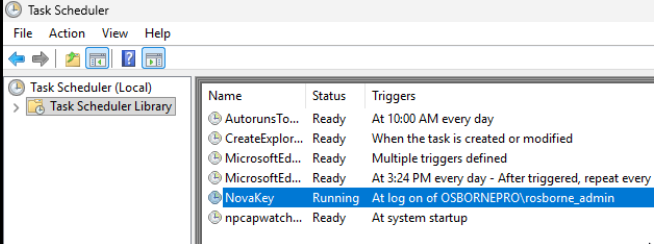 No administrator privileges are required.
3) Permissions (first run)
Windows may prompt for:
- Firewall access (allow local network access)
macOS Installation
1) Download
Download one of the following, depending on your Mac:
- Apple Silicon (M1/M2/M3):
NovaKey-<version>-arm64.pkg
NovaKey-<version>-amd64.pkg
2) Run the installer
- Double-click the
.pkg - Follow the installer prompts
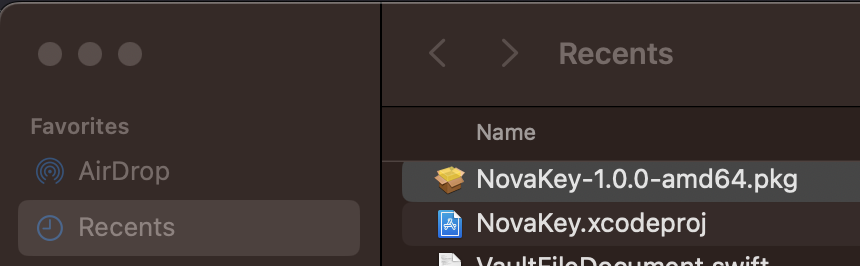
The installer:
- Installs NovaKey into your user profile
- Registers a LaunchAgent that runs at login
- Starts the daemon automatically
3) Required macOS permissions
macOS requires explicit approval for typing automation.
Open:
System Settings → Privacy & Security
Enable NovaKey under:
- Accessibility
- Input Monitoring
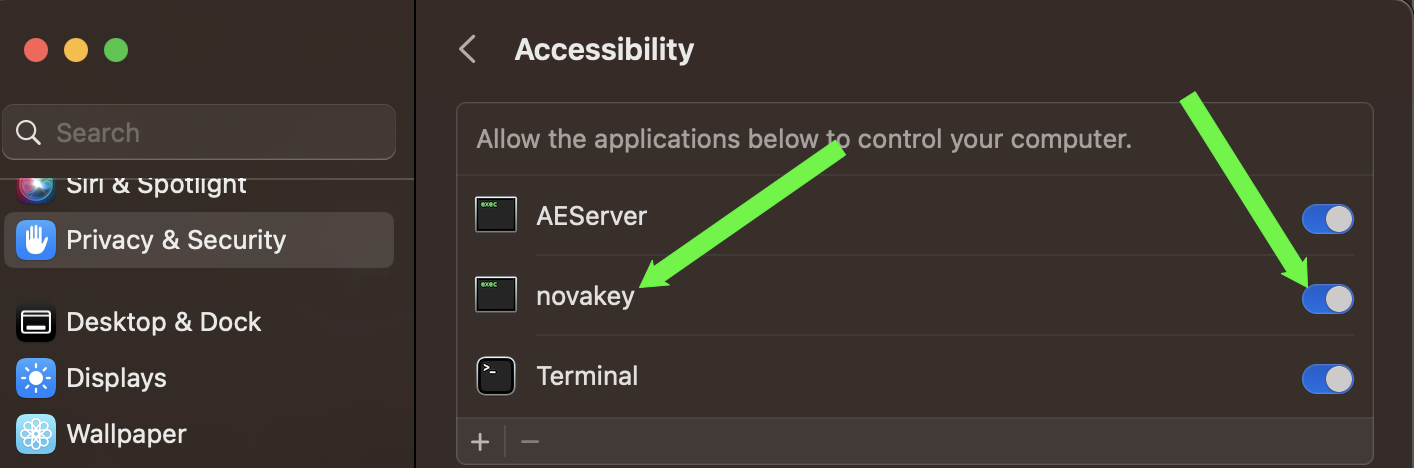
The daemon will not function correctly until both are enabled.
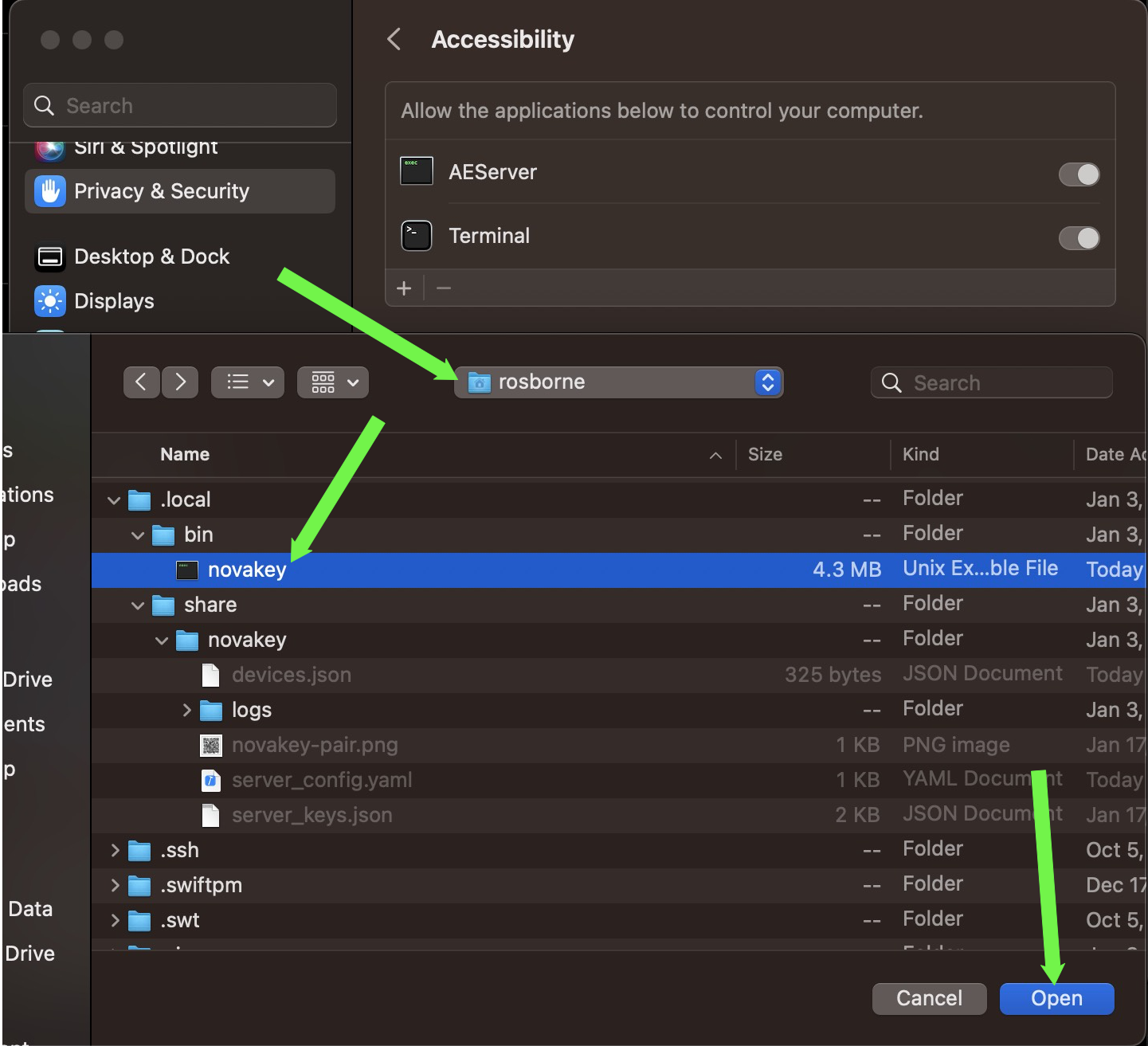
To add the accessibility permissions you need to add the novakey binary in ~/.local/share/novakey/bin/novakey to System Settings > Privacy & Security > Accessibility
Linux Installation (Recommended: Signed Repositories)
⚠️ Linux security key / keyring warning
On Linux systems using hardware-backed authentication (for example YubiKey, smart cards, or PAM configurations that require external confirmation), NovaKey may be unable to unlock the system keyring during startup.
If secure storage initialization fails repeatedly, pairing may not complete unless
require_sealed_device_store: falseis set inserver_config.yaml, followed by a restart.If pairing state becomes partially initialized, a full uninstall and reinstall may be required to restart pairing.
Package signing key (Linux)
NovaKey Linux packages and repositories are signed with:
- Signing Key Fingerprint:
0405 FB0D FB68 0F27 2E40 D353 C9D4 4266 5653 AEB5 - Key URL:
https://repo.novakey.app/keys/novakey-repo-public.asc
RPM-Based Distributions (Rocky, RHEL, Fedora, Alma)
1) Add the NovaKey repository
sudo tee /etc/yum.repos.d/novakey.repo >/dev/null <<'EOF'
[novakey]
name=NovaKey Repo
baseurl=https://repo.novakey.app/rpm/repo/
enabled=1
gpgcheck=1
repo_gpgcheck=1
gpgkey=https://repo.novakey.app/keys/novakey-repo-public.asc
EOF
2) Import the signing key
sudo rpm --import https://repo.novakey.app/keys/novakey-repo-public.asc
3) Install NovaKey
sudo dnf clean all
sudo dnf makecache
sudo dnf install -y novakey
4) Enable the user service
systemctl --user enable novakey --now
Debian / Ubuntu (APT)
1) Install prerequisites
sudo apt update
sudo apt install -y ca-certificates curl gnupg
2) Install the NovaKey repo signing key (keyring)
sudo install -d -m 0755 /usr/share/keyrings

curl -fsSL https://repo.novakey.app/keys/novakey-repo-public.asc \
  | gpg --dearmor \
  | sudo tee /usr/share/keyrings/novakey.gpg >/dev/null
3) Add the NovaKey APT repository
echo "deb [signed-by=/usr/share/keyrings/novakey.gpg] https://repo.novakey.app/apt stable main" \
  | sudo tee /etc/apt/sources.list.d/novakey.list >/dev/null
4) Install NovaKey
sudo apt update
sudo apt install -y novakey
systemctl --user enable novakey --now
Verifying Installation
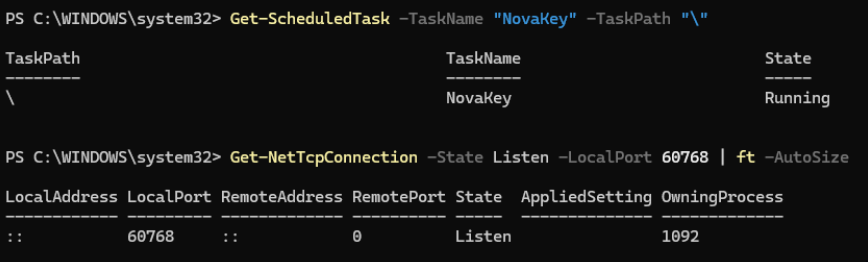
Windows
Get-ScheduledTask -TaskName NovaKey
Get-NetTcpConnection -State Listen -LocalPort 60768
macOS
launchctl list | grep novakey
lsof -iTCP:60768 -sTCP:LISTEN

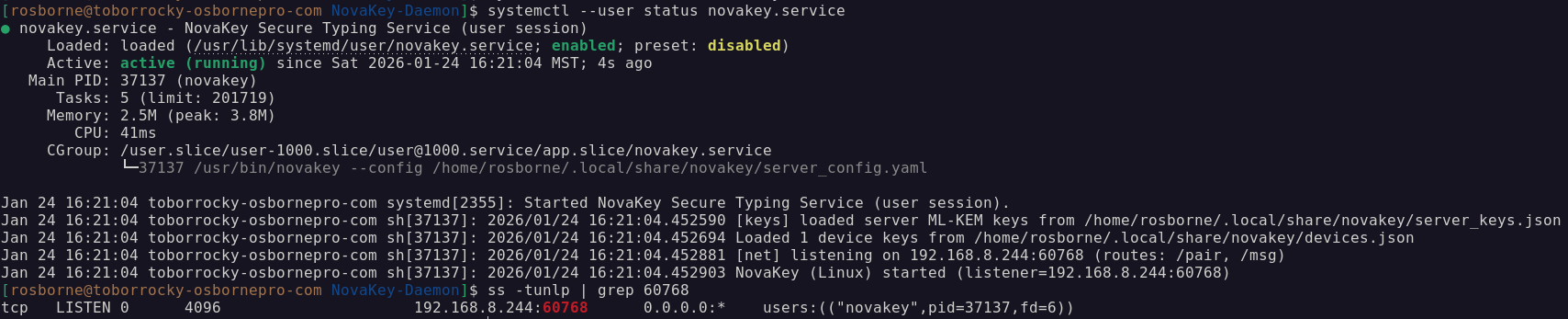
Linux
systemctl --user status novakey
ss -tunlp | grep 60768
First Run & Device Pairing
On first startup, the NovaKey Daemon performs secure initialization and attempts to bind itself to the platform’s native secure storage.
If no devices are paired during this phase:
- The daemon enters pairing mode
- A time-limited QR code (
novakey-pair.png) is generated - The QR is displayed automatically (Windows/macOS) or logged (Linux)
If pairing does not complete successfully and secure storage cannot be unlocked,
the daemon may fall back to a local device store (devices.json) or require a reinstall
to restart the pairing process.
This behavior is intentional and prevents indefinite pairing attempts.
See:
docs/daemon/troubleshooting.md
Uninstalling NovaKey
Windows
- Use Apps & Features
- Optionally preserve pairing keys during uninstall
macOS
- Remove via the installed package
- Or remove the LaunchAgent manually
Linux
sudo dnf remove novakey
# or
sudo apt remove novakey
Legacy Installation (Deprecated)
⚠️ Deprecated — use official installers or repositories
Legacy shell and PowerShell install scripts remain available for advanced or automated environments but are no longer recommended for end users.
installers/legacy/
Security Notes
- The daemon always runs per-user
- Packages and repositories are cryptographically signed
- Secrets are never transmitted unless explicitly initiated by the NovaKey app
- Pairing is intentionally strict to prevent downgrade, replay, or brute-force attempts